
A text-to-speech tool has a straightforward job: turn your script into audio you can actually use. Yet the details between pasting text and downloading a file can make a bigger difference than a long feature list. Finding the right regional voice, understanding the free limit, and keeping a usable recording all matter.
Luvvoice text to speech handles that basic workflow well. Its browser interface keeps text entry, language selection, generation, and MP3 downloads close together. You can get started without creating an account, and its regional language options deserve attention.
My preference is to start with Luvvoice when I already know the language and regional variety I need. I would consider another tool when choosing a particular vocal style or accessing additional export options becomes more important. Here is how those decisions play out in practice.
What Is Luvvoice Text to Speech?
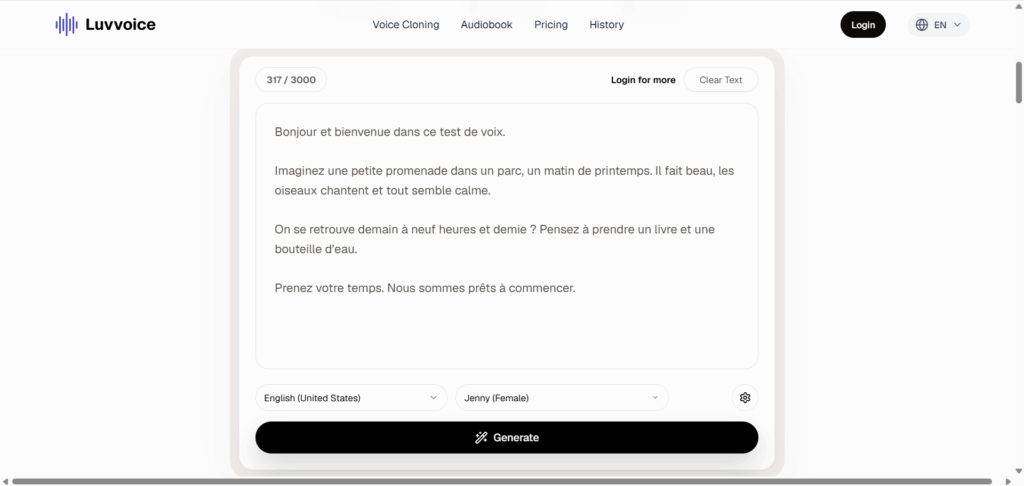
Luvvoice is an online tool that converts written text into spoken audio. You enter a script, select a language and voice, generate the recording, and download an MP3.
That makes it a practical starting point for short video narration, listening to study material, or producing an audio version of a passage. The main conversion screen does not require you to understand speech models or configure an API.
The recorded workflow covered English, Mandarin Chinese, Spanish, Japanese, and French. Each produced a downloadable MP3. That demonstrates a working multilingual conversion process, although generating a file does not establish that every pronunciation or accent is correct.
For me, that distinction matters. A tool can be easy to operate while still requiring careful review before its output goes into a finished project.
Key Features of Luvvoice
AI Voices and Language Options
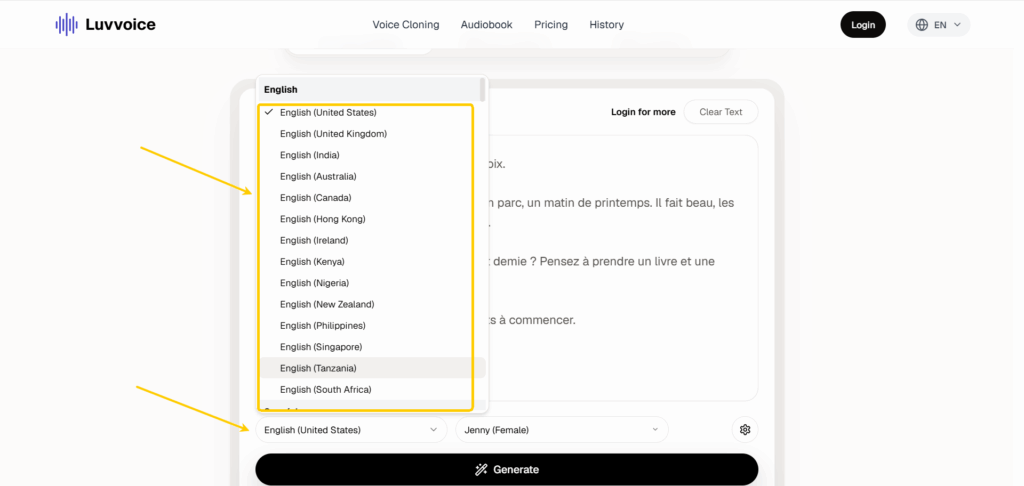
Luvvoice’s regional selections are more useful than a broad language count suggests. English options include several countries, while Spanish and French also offer regional variants.
In the recorded sessions, the selections included U.S. English with Jenny, Mandarin with Xiaoxiao, Argentine Spanish with Elena, Japanese with Nanami, and Belgian French with Charline.
For a U.S. audience, I would begin with a U.S. English voice and check the script’s names, abbreviations, and numbers. For localized content, I would choose the intended region before comparing individual voices.
The downside is navigation. A long dropdown offers flexibility, but finding a particular option requires scrolling. Having many choices helps most when you already know what you are looking for.
Speech Rate, Volume, and Pitch Controls
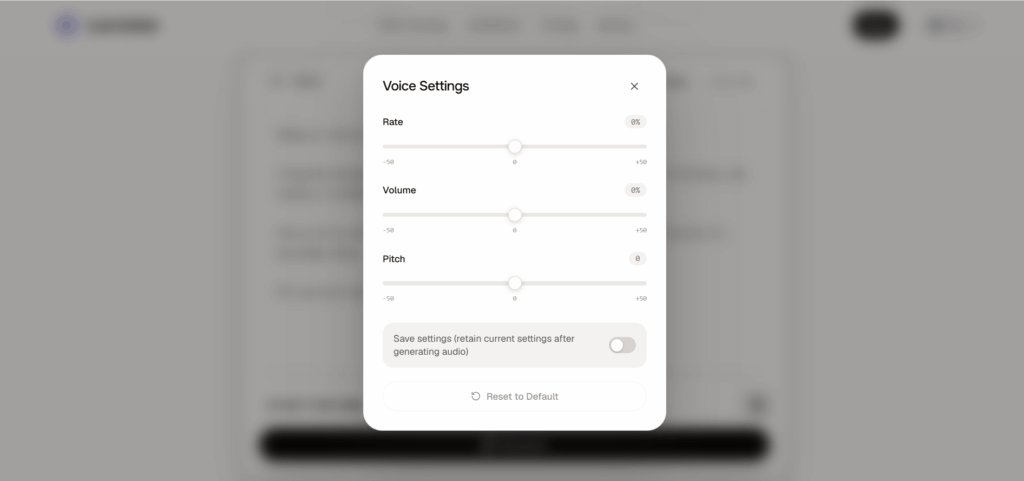
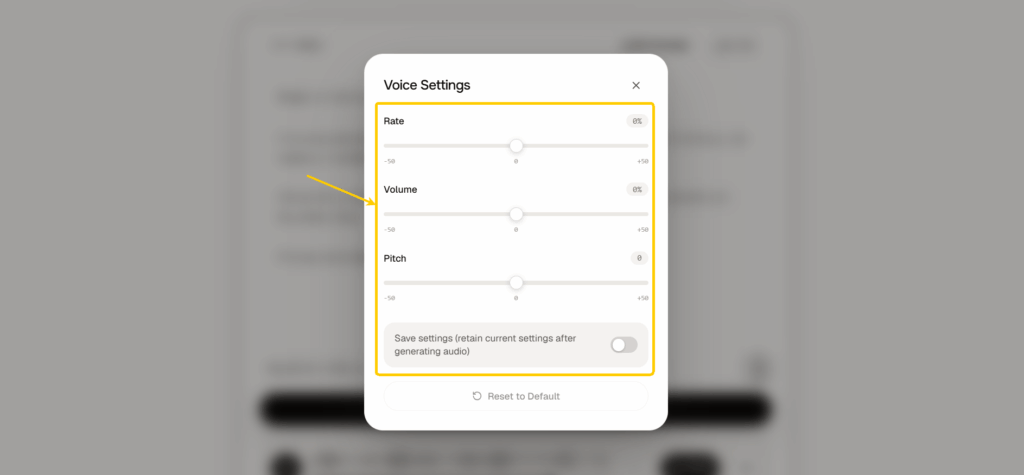
The settings panel contains three straightforward controls: rate, volume, and pitch. It also offers a setting to retain your adjustments after generation and a reset button.
I prefer this kind of simple control for ordinary narration. If a passage feels rushed, adjusting the rate is an obvious next step. Changing one setting at a time also makes it easier to understand what improved the result.
These controls should not be mistaken for an emotion editor. Raising pitch does not automatically create excitement, and slowing a voice does not necessarily make it reassuring.
There is also a distinction between generation settings and the player’s playback speed. If you want to change the recording you download, adjust the generation settings and create a new version.
PDF and TXT to Speech
Luvvoice also provides a file-to-speech route for documents, including PDF and TXT files. This can reduce copying and pasting when your starting point is a document rather than a short script.
I would still check the extracted text before generating a long recording. Headers, broken lines, and page numbers can interrupt otherwise readable material.
The recorded sessions focused on pasted text, so document conversion is not part of the hands-on comparison here. Check the upload requirements and account conditions before planning a workflow around an entire document.
MP3 Downloads
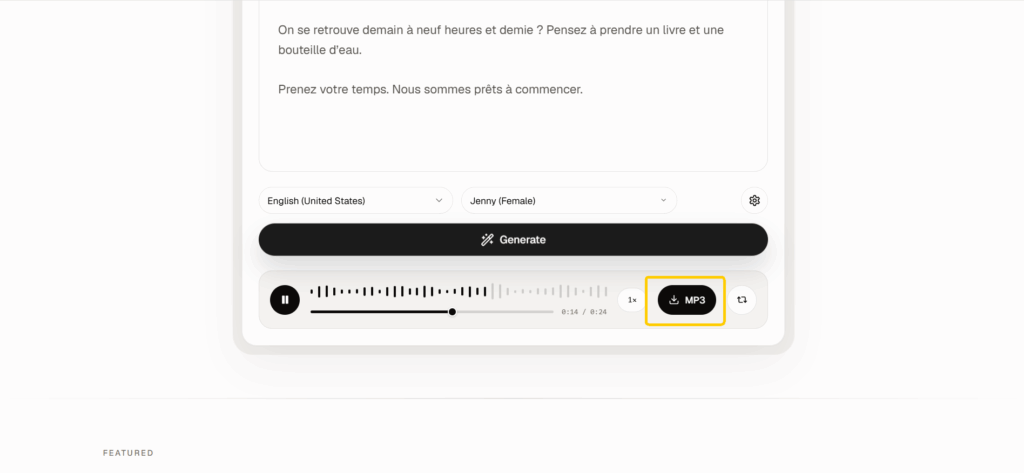
Once generation finishes, Luvvoice places playback and an MP3 download button beneath the text area. That keeps the final step simple.
All five supplied Luvvoice downloads were mono MP3 files encoded at 24 kHz and 48 kbps. Those are the specifications of these samples, not a promise about every voice or future export.
For everyday listening, I would pay more attention to intelligibility and pronunciation than to the specification alone. For production work, I would also check whether the file suits the editor and delivery requirements.
Is Luvvoice Free? Usage Limits Explained
What You Can Use Without an Account
The recorded Luvvoice sessions completed text entry, voice selection, generation, and MP3 downloading while signed out. Basic short-text conversion therefore did not require registration in this workflow.
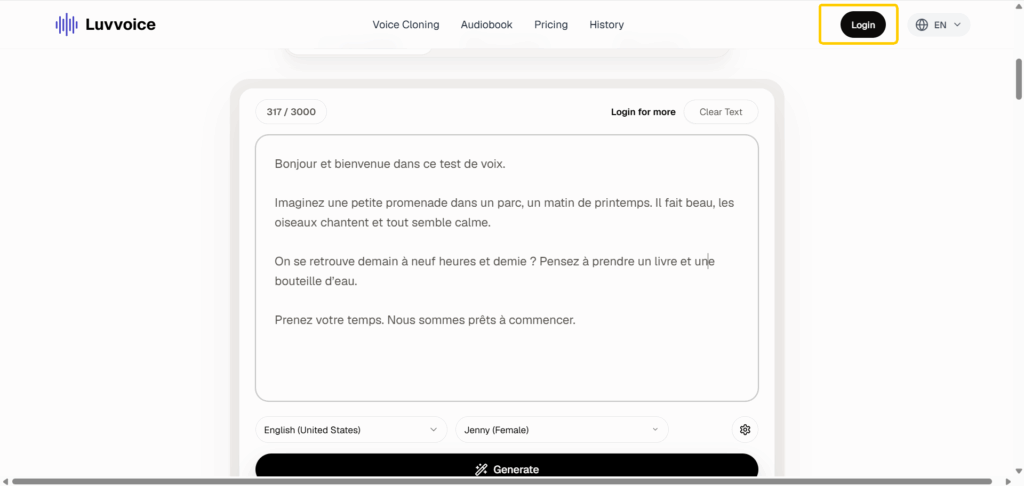
However, some generations encountered a verification screen or a free-queue message. The interface also prompted the user to sign in to skip the wait.
That is a meaningful distinction: free access was available, but it was not always an uninterrupted click-and-download process.
What Changes When You Sign In or Upgrade
The editor displays a prompt to log in for more access. Expanded character allowances and additional capabilities also depend on the account or plan.
I would create an account when the signed-out workflow starts getting in the way of a recurring task. Paying requires a more specific justification: a needed feature, sufficient usage allowance, or a larger supported input.
The existence of an upgrade does not tell you whether you need it. Match the plan to the job before committing.
Character Limits and Usage Quotas
The signed-out editor displayed a 3,000-character limit. Treat that as a character allowance, not a 3,000-word allowance.
It is also separate from any cumulative quota, queue policy, or document limit. Being able to generate one short passage does not establish unlimited daily use.
For longer scripts, I prefer dividing the material at paragraph or section boundaries. That makes individual mistakes easier to repair, although it also creates multiple files that may need joining later.
Standard Voices vs. Custom Voice Credits
Luvvoice distinguishes standard voices from custom voice offerings that use credits. Do not assume that access to a preset voice includes equivalent access to every custom option.
The samples discussed here used named preset voices. They do not establish the cost, availability, or quality of voice cloning.
For a basic narration job, I would explore the preset library first. Custom voice features make more sense when a particular vocal identity is essential.
How to Use Luvvoice Text to Speech
Step 1: Enter Your Text or Upload a Document
For a first attempt, paste a short, representative passage into the editor. Include something that matters to your project: a product name, a date, a question, or a sentence with several clauses.
Starting small helps you catch problems before generating an entire script. Remove text that should not be spoken, such as editing notes or navigation labels.
If you choose file upload instead, review the imported content before continuing.
Step 2: Choose a Language and Voice
Select the language and region, then choose a voice. For an American instructional video, U.S. English is a sensible starting point.
When switching languages, check both selectors again. Replacing the text does not mean the currently selected voice is appropriate for the new passage.
I would also avoid treating an unfamiliar language as a quality test I can confidently judge. A pleasant sound is not proof of accurate pronunciation.
Step 3: Adjust Speech Settings
Open the gear icon to access rate, volume, and pitch. Start with the defaults so you have a reference version.
Then change the setting that addresses a specific problem. A dense explanation might benefit from a slower rate; a voice that simply does not fit the script may call for a different selection altogether.
Keep notes on settings if you are generating several sections. Consistent choices make separate clips easier to combine.
Step 4: Generate, Preview, and Download Your MP3
Click Generate and allow for any verification or queue prompt. Once the player appears, review the result before downloading.
Check the beginning, the ending, names, numbers, and transitions between paragraphs. A successful generation message confirms that a file was created; it does not replace editorial review.
Download the MP3 and give it a descriptive filename. Including the language, voice, and script version makes later revisions considerably easier.
Luvvoice Pros and Cons
Where Luvvoice Fits Your Workflow
Luvvoice makes sense when the task is straightforward: convert a short script, select a regional voice, and save an MP3.
Its strongest practical qualities are visible in that sequence. You can start signed out, the voice settings are understandable, and the download button is easy to locate. Regional language choices also make it worth exploring for localized narration.
I would keep using it if those steps reliably produce a suitable result. Switching tools has little value when the existing workflow already meets the project’s needs.
Limitations to Check Before You Start
The 3,000-character signed-out input limit matters for longer material. Verification and queue prompts may interrupt the process, while the large language menu can take time to navigate.
Basic controls also have limits. Rate and pitch adjustments cannot guarantee the delivery you want from a particular voice.
Finally, the available samples do not support a universal voice-quality ranking. Different voices and settings affect the result, and the English recordings used different passages. Their lengths therefore cannot tell us which product speaks faster or generates more efficiently.
When to Consider Text to Speech as a Luvvoice Alternative
Compare Sign-Up Requirements and Free Access
Text to Speech is worth considering as a Luvvoice alternative, but registration is not a clean dividing line between them.
Both products supported initial generation without signing in during the recorded workflows. The Text to Speech session later included a login, and its interface displayed usage balances.
I would compare the conditions of the specific voice or model I intended to use. “You can start free” and “every option is unlimited” are different claims.
Text to Speech also warned that signed-out audio would not be saved and should be downloaded. That is useful guidance for anyone expecting to return to a recording later.
Compare Voice Options and Speech Controls
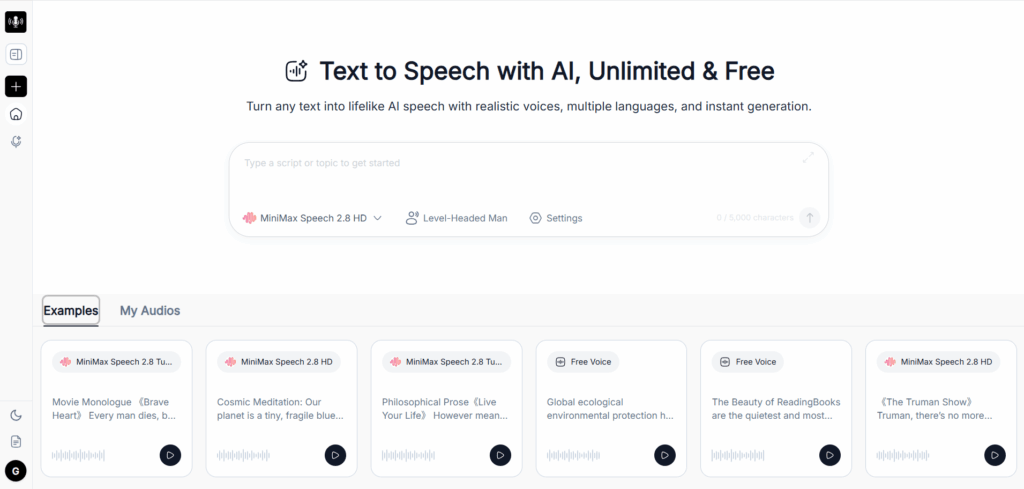
Text to Speech places more descriptive information around voice selection. Its panel includes language, accent, gender, and age filters, alongside voice descriptions and style-oriented names.
That approach appeals to me when the brief is about delivery: a composed explainer, a deeper narrator, or a softer voice. Luvvoice’s regional selectors are appealing when geographic variety is the first priority.
The Text to Speech recordings used MiniMax Speech 2.8 HD. They should not be treated as representative of every model or free voice available on the site.
| Workflow priority | Luvvoice | Text to Speech |
| Select a regional language variant | Detailed country and region choices | Language and accent filters |
| Choose by vocal character | Named voices with basic labels | Descriptions and style-oriented labels |
| Make basic adjustments | Rate, volume, and pitch confirmed | Settings entry visible; full controls not assessed here |
| Download the result | Direct MP3 button | Menu showing MP3, WAV, and text export options |
| Start without registration | Demonstrated | Demonstrated for initial generations |
Choose a Tool for Your Text-to-MP3 Workflow
The five Text to Speech MP3 samples used 44.1 kHz sampling and approximately 256 kbps encoding, compared with 24 kHz and 48 kbps for the Luvvoice samples. Both sets were mono.
Higher export specifications are relevant, but they do not establish more convincing speech. Voice delivery and encoding are separate considerations.
My choice would depend on what needs improvement. If I need a different regional voice, I would explore Luvvoice’s library further. If I need clearer style descriptions or additional export choices, I would try the Text to Speech generator with the same script.
That is a more useful comparison than declaring one tool the winner for every task.
Frequently Asked Questions
Does Luvvoice Have a Character Limit?
Yes. The signed-out editor in the recorded sessions displayed a 3,000-character limit. Account and plan allowances can differ. Check the limit shown for your current mode rather than interpreting broad unlimited-use language as unlimited input per generation.
Can You Download Luvvoice Audio for Free?
Yes. The recorded signed-out workflow produced downloadable MP3 files without a purchase. That finding applies to the preset voices used; it does not establish free access to every custom voice or feature.
Can You Use Luvvoice Audio in YouTube Videos or Commercial Projects?
Check the current usage terms for your plan and selected voice before publishing commercially. Download access alone does not establish commercial rights. A monetized video or client deliverable should be evaluated against the relevant license conditions.
How Can You Convert Long Text with Luvvoice?
Check whether your account supports the required length or whether document conversion suits the task. Otherwise, divide the script into coherent sections, keep the voice settings consistent, and review each file before combining them.
What Should You Check If Luvvoice Is Not Generating Audio?
First, check the text length, selected voice, and any verification or queue message. The recorded sessions included waiting prompts, so an incomplete generation is not necessarily a failed one. If an error appears, retain your script, read the message, and try a shorter passage before rebuilding the whole project.
Conclusion
Luvvoice text to speech is a practical choice for turning short scripts into downloadable audio, especially when regional language options matter. Its straightforward interface and basic voice controls make it easy to get started. The character limit and occasional queue prompts become more relevant as your workload grows.
I would start with Luvvoice for a simple text-to-MP3 task and consider Text to Speech when I wanted more descriptive voice choices or additional export options. Before settling on either, I would compare the same short passage in both. The better fit is the one that delivers the voice you need with fewer revisions—not simply the longer feature list.